Issues and Pull Requests
Gannin lists issues and pull requests as tables you can search, filter and sort. Both come from what Gannin has already fetched, so they open quickly and follow your window’s project.
Issues
Section titled “Issues”Under Issues in the sidebar:
- Issues is issue metrics: how many were opened and closed, cycle time, and an In progress now list with its own search. In progress now can be ordered by a field from a board. An issue that isn’t on the board you picked says so rather than disappearing.
- All is a table of every open issue and those closed since the start of the metrics window: title, repository, number, author, assignees, labels, linked PRs, opened and closed. Click a column to sort. Sub-issues fold under their parent when both are listed. While you search or filter they show flat.
- Not on a board lists issues on no project board, or not on one you choose, open, closed or both.
How cycle time is worked out is set in Issues settings.
Filters
Section titled “Filters”The bar at the top of the page has a search and filter menus. The search needs every word you type to match the title, repository, number, a person’s login or name, or a label.
- Assignee: Me, Anyone assigned, Unassigned, or a person.
- Repository and Label.
- Field: one submenu per board field, with its values in the board’s order and No value. It appears once an issue is on a board.
- Milestone: No Milestone first. It appears once an issue has a milestone.
- Open, Closed or All.
Menus show counts, and you can pick several values in one. Not on a board puts its board picker first.
Pull Requests has its own bar: search, Author, Reviewer (Me first, then No Reviewer), Status (draft, needs review, changes requested, approved, merged), Repository, and Open, Merged or All. Open covers open PRs and Merged those merged within the lookback (Sync settings). The Files and Size columns show files changed and lines added and removed.
Filters are kept per window, so two tabs can look at different slices.
Add issues to a board
Section titled “Add issues to a board”On Not on a board, select issues and choose Add to Board, then pick the board. This writes to GitHub: Gannin lists what will be added and asks you to confirm. It then adds each one and ticks it off, and stays open until you press Done. Reading boards needs the project permission on your GitHub sign-in.
Open an issue or PR
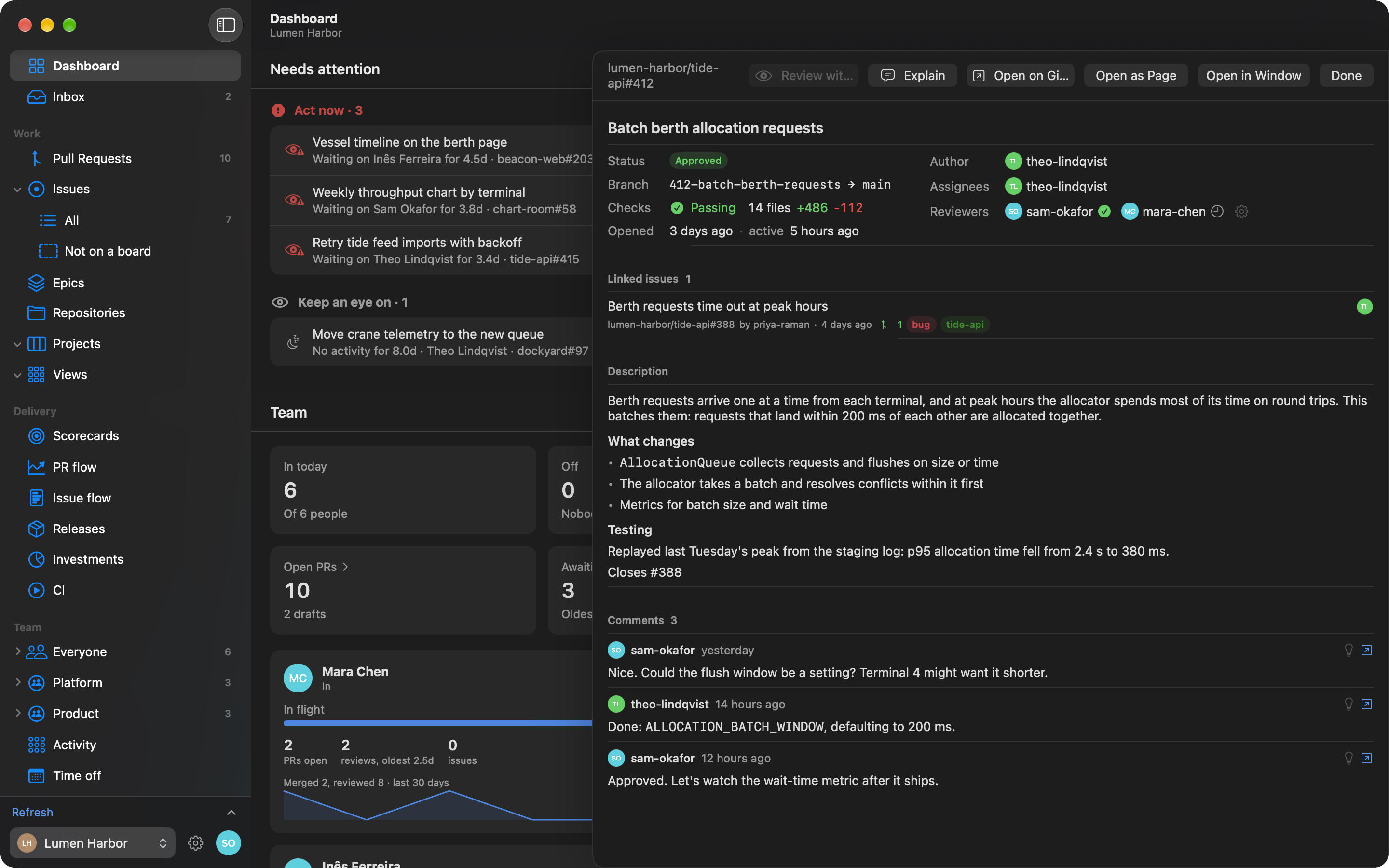
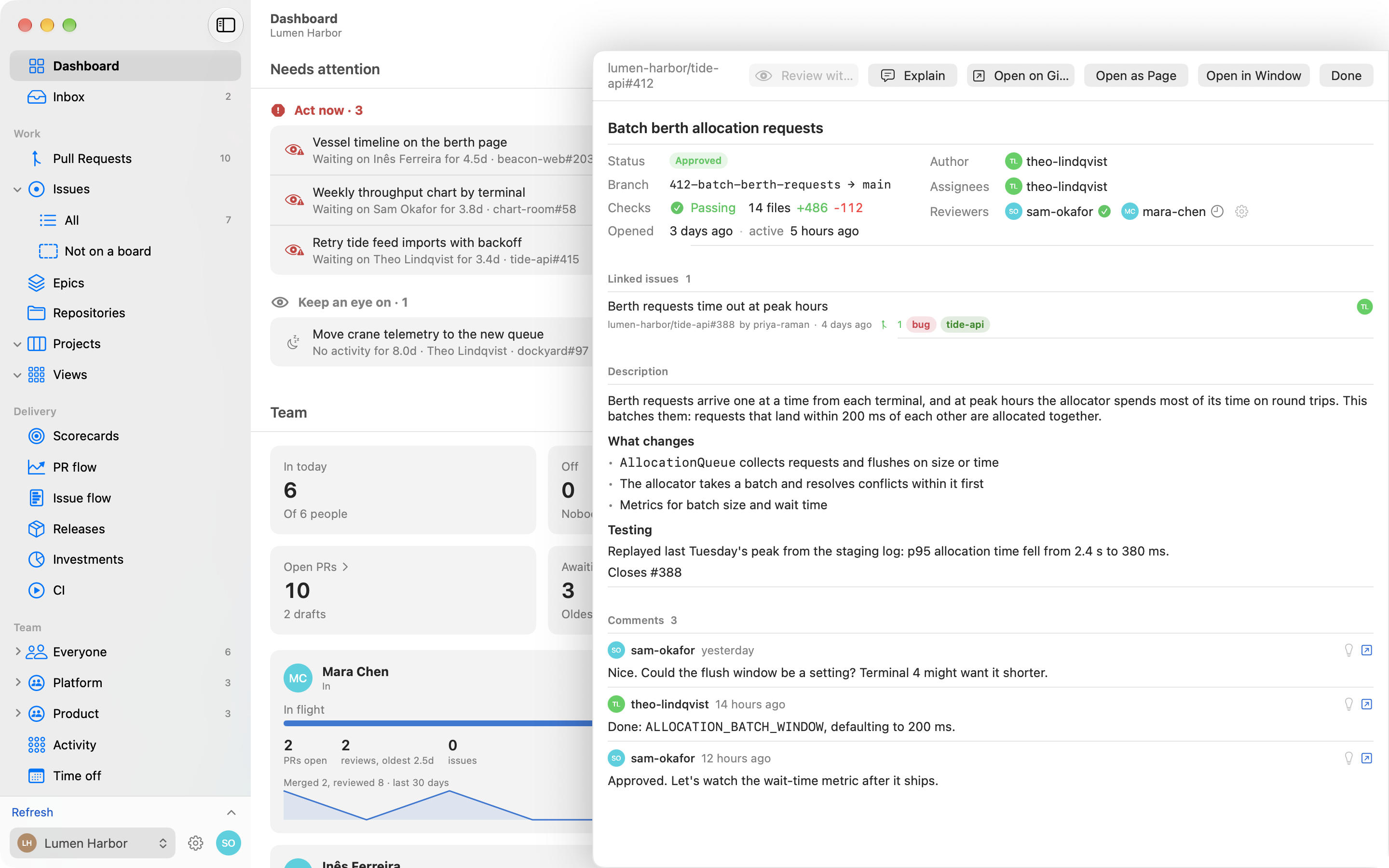
Section titled “Open an issue or PR”Click a row to open it in a drawer over the page. Right-click for Open in New Tab or Open in New Window. To write a new issue, see New Issue.